What Is ChatGPT Agent, Really?
Most people still think of ChatGPT as a chat box. You type a question, it types back an answer, and that’s the whole relationship.
ChatGPT Agent changes that relationship completely.
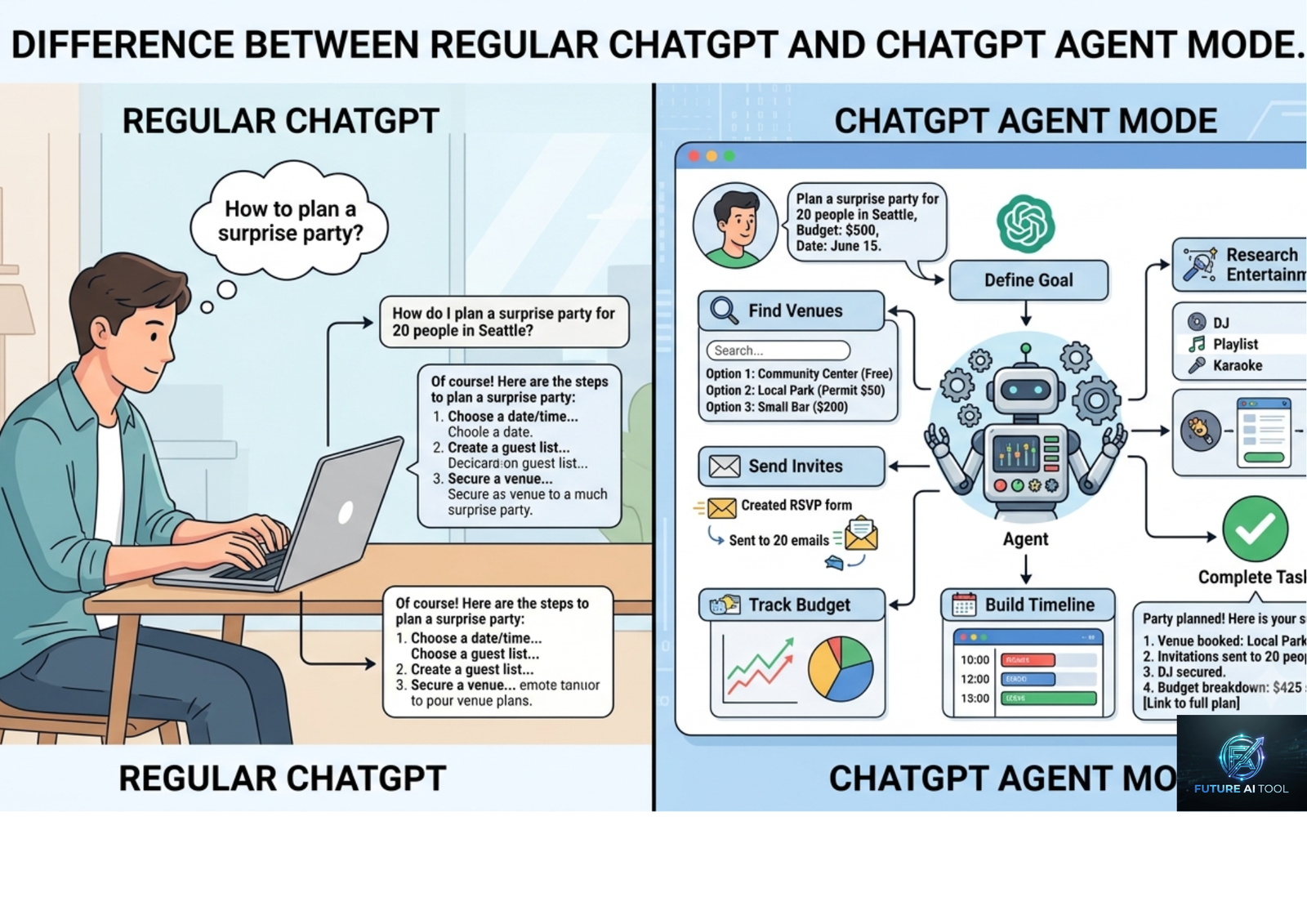
Instead of just talking, it acts. It can open a browser, click through websites, fill out forms, pull data from your files, run code, build a spreadsheet, and hand you a finished slideshow — all from a single instruction you type once.
Think of the difference this way: a regular chatbot is like a smart friend who gives you directions. ChatGPT Agent is like a smart assistant who actually drives the car for you.
OpenAI built this by combining three earlier tools into one system:
- Web browsing and clicking (from its earlier “Operator” tool)
- Deep research and analysis (from its “deep research” feature)
- Natural conversation and reasoning (from core ChatGPT)
The result is a single “agent mode” that can plan a multi-step task, decide which tools to use along the way, and keep working until the job is done — pausing only when it needs your login, a decision, or a confirmation.
This matters for productivity because most real work isn’t a single question with a single answer. It’s a chain of small steps: research, compare, organize, write, format, send. ChatGPT Agent is built to handle that whole chain, not just one link in it.
How ChatGPT Agent Is Different From Regular ChatGPT
It helps to picture the difference in plain terms.
Regular ChatGPT:
- You ask a question
- It answers based on what it already knows or a quick search
- You copy the answer and do the rest of the work yourself
ChatGPT Agent:
- You describe a goal, not just a question
- It breaks the goal into steps on its own
- It browses the web, logs into sites (with your permission), reads files, and runs code
- It keeps working through the task, sometimes for several minutes or longer
- It delivers a finished result — a document, spreadsheet, slide deck, or completed action
For example, asking regular ChatGPT “what’s a good vegetarian recipe for four people” gives you a recipe. Asking ChatGPT Agent to “plan and buy ingredients for a vegetarian dinner for four” can result in it checking a recipe, building a shopping list, and even working through an online grocery cart with you.
That gap — between telling you what to do and actually doing it — is where the real productivity gain lives.
Who Should Be Using ChatGPT Agent
You don’t need to be a developer or a tech expert to benefit from this. In fact, the tool is built specifically so that non-technical people can use it comfortably.
Beginners can use it for:
- Planning trips, errands, or events
- Comparing products before a purchase
- Organizing personal files or emails
- Getting quick research summaries with sources
Professionals can use it for:
- Competitor research and market analysis
- Building first drafts of reports, slide decks, or spreadsheets
- Automating repetitive data-entry style tasks
- Preparing meeting briefs from calendar and email context
- Running recurring tasks (like a weekly report) automatically
If your job involves research, writing, data organization, or repetitive online tasks, this tool is worth learning properly instead of treating it as a novelty.
Getting Started: How to Turn On Agent Mode
Here’s the simple path to get up and running:
- Open ChatGPT on web or desktop and make sure you’re on a paid plan that supports agent features (availability has expanded over time, so check your account’s tools menu to confirm access).
- Find the tools dropdown in the message box (usually a small icon near the text field).
- Select “Agent” mode, or simply type
/agentin the composer. - Describe your task clearly, including the outcome you want, not just the topic.
- Let it work. The agent will show its steps as it goes, and it will pause to ask for confirmation before doing anything sensitive, like logging into an account or completing a purchase.
- Review the output. Treat the result as a strong first draft, not a finished, unchecked deliverable.
A quick note on naming: OpenAI has continued to update this feature, and some of its agent capabilities have been rolled into newer branded experiences with expanded abilities across desktop, web, and mobile. If you don’t see “agent mode” exactly where described above, look for an agent or “work” option in your tools menu — the core idea is the same: give it a goal, and it executes.
Step-by-Step: How to Use ChatGPT Agent for Real Tasks
Let’s walk through an actual workflow so you can see how this fits into a real day.
Step 1: Start With an Outcome, Not a Topic
Instead of “tell me about competitor pricing,” say:
“Research the pricing pages of my three main competitors, summarize their plans in a table, and note where our pricing is higher or lower.”
Notice the difference. You’re describing a finished result: a table, a comparison, a conclusion.
Step 2: Give It the Details It Needs
The more specific your task, the better the output. Include:
- Names, links, or files it should use
- The format you want (spreadsheet, slide deck, bullet summary)
- Any constraints (budget, deadline, tone, length)
Step 3: Let the Agent Plan
Once you send the task, the agent will outline a plan, then start working through it — browsing, reading, calculating, or writing as needed. You’ll usually see a running log of what it’s doing.
Step 4: Respond to Checkpoints
If it needs you to log into an account, confirm a purchase, or make a choice between two options, it will pause and ask. This is intentional — it keeps you in control of sensitive actions.
Step 5: Review, Edit, Finalize
Once it delivers the result, check it for accuracy, especially numbers, links, and anything you’ll share externally. Then edit it into your own voice or format if needed.
This five-step rhythm — outcome, details, plan, checkpoints, review — works for almost any task you hand it.

Real-World Productivity Examples
Here are practical ways people are already using this to save real time:
- Weekly competitor snapshot: Set up a recurring task that checks three competitor websites every Monday and emails you a short summary of pricing or feature changes.
- Meeting prep: Ask it to check your calendar and recent emails, then brief you on who you’re meeting and what topics came up recently.
- Travel planning: Give it a budget and dates, and have it compare flights and hotels, then build a simple itinerary document.
- First-draft slide decks: Hand it three data sources and ask for a slide deck summarizing key trends — useful as a starting point before you polish the design.
- Shopping research: Ask it to compare specs and prices across a few retailers for something you’re about to buy, and summarize the best value option.
- Spreadsheet cleanup: Upload a messy file and ask it to organize, label, and calculate totals or trends automatically.
None of these tasks are exotic. They’re the kind of small, time-consuming chores that eat up an hour here and there throughout a normal week. Automating even a few of them adds up fast.
ChatGPT Agent vs. Regular ChatGPT vs. Other AI Agents
| Feature | Regular ChatGPT | ChatGPT Agent | Other AI Agent Tools |
|---|---|---|---|
| Answers questions | Yes | Yes | Varies |
| Browses live websites | Limited | Yes, with clicking and navigation | Often yes |
| Fills forms / logs into sites | No | Yes, with user confirmation | Varies by tool |
| Runs code and calculations | Limited | Yes | Often yes |
| Produces finished files (slides, sheets) | No | Yes | Varies |
| Multi-step autonomous execution | No | Yes | Often yes |
| Schedules recurring tasks | No | Yes | Sometimes |
| Best for | Quick answers, drafting text | End-to-end task completion | Depends on platform |
The takeaway: if your work is mostly quick Q&A or short writing help, regular ChatGPT is often enough. If your work involves multi-step research, data gathering, or repetitive online actions, agent mode is where the real time savings show up.
Pros and Cons of ChatGPT Agent
Pros
- Handles multi-step tasks without you supervising every click
- Saves significant time on research, comparison, and reporting
- Produces usable first drafts of documents, spreadsheets, and slides
- Can run tasks on a schedule, so work happens even when you’re not at your desk
- Accessible to non-technical users — no coding required
- Pauses for your approval before sensitive actions
Cons
- Can still make mistakes, especially with nuanced or ambiguous instructions
- Slide and document formatting is sometimes rough and needs manual polish
- Tasks can take several minutes to complete, which isn’t ideal for urgent needs
- Logging into accounts through an agent carries privacy and security considerations
- Usage limits apply depending on your subscription plan
- Vague prompts lead to vague or incomplete results
Best Practices for Getting the Most Out of ChatGPT Agent
- Be specific about the end result. “Build me a comparison spreadsheet with columns for price, features, and rating” beats “look into some products for me.”
- Break very large goals into smaller tasks. If a project has multiple distinct phases, it’s often more reliable to run them as separate agent tasks.
- Use it for repeatable work. Recurring tasks — weekly summaries, monthly reports — are one of the best returns on your time investment.
- Always review before sending anything external. Treat agent output as a draft that needs a human check, especially for numbers, claims, or anything customer-facing.
- Combine it with your own judgment. The agent is strongest at gathering, organizing, and drafting. You’re still the one who decides what’s actually right for your situation.
Safety, Privacy, and Common Mistakes to Avoid
Because ChatGPT Agent can log into websites and access connected data sources like email or documents, it’s worth using a few sensible precautions:
- Only enable the apps or accounts needed for the specific task. Don’t leave everything connected all the time.
- Avoid typing passwords directly into chat. Use secure login prompts when the agent asks you to sign in.
- Watch for unusual behavior mid-task, such as the agent trying to visit an unrelated site. Stop the task if something looks off.
- Be careful with vague, wide-open instructions like “check my email and handle everything,” since broad permissions increase risk.
- Double-check anything involving money, contracts, or sensitive personal data before letting the agent finalize an action.
These aren’t reasons to avoid the tool — they’re just the same common-sense habits you’d use with any assistant who has access to your accounts.
Frequently Asked Questions
1. What is ChatGPT Agent used for?
It’s used to complete multi-step tasks that involve web browsing, research, file handling, and producing finished documents, spreadsheets, or slides — going beyond simple chat answers.
2. Is ChatGPT Agent free to use?
Access has generally been tied to paid ChatGPT plans, with availability expanding over time to more plan tiers. Check your account’s tools menu to see what your current plan includes.
3. How long does a ChatGPT Agent task take?
Most tasks complete within a few minutes to around 30 minutes, depending on how complex the request is. Some tasks can run longer if they involve deep research or many steps.
4. Can ChatGPT Agent make mistakes?
Yes. It’s a powerful tool, but not perfect. Always review its output, especially numbers, sources, and anything you plan to share externally.
5. Is it safe to let ChatGPT Agent log into my accounts?
It includes safeguards like pausing for confirmation on sensitive actions, but there are still real privacy considerations. Only connect accounts you’re comfortable with and monitor the task as it runs.
6. Do I need coding skills to use ChatGPT Agent?
No. It’s designed to be usable by non-technical people. You describe your goal in plain language, and it handles the technical steps.
7. Can ChatGPT Agent create slideshows and spreadsheets?
Yes, it can generate editable slide decks and spreadsheets summarizing its research, though formatting quality can vary and may need manual polishing.
8. Can I schedule ChatGPT Agent to repeat tasks automatically?
Yes. After a task completes, you can set it to repeat daily, weekly, or monthly, and manage those recurring tasks from your schedule settings.
9. How is ChatGPT Agent different from ChatGPT’s regular research feature?
Deep research focuses mainly on gathering and summarizing information. ChatGPT Agent goes further by also taking actions, like clicking through websites, filling forms, or completing tasks end to end.
10. Is ChatGPT Agent good for business use?
Yes, especially for research, reporting, competitive analysis, and repetitive online tasks. Many professionals use it to cut down hours spent on manual data gathering and first drafts.
Conclusion
ChatGPT Agent isn’t just a bigger chatbot — it’s a shift from getting answers to getting things done. For beginners, it turns everyday chores like trip planning or shopping research into a single request. For professionals, it can absorb hours of repetitive research, reporting, and drafting work every week.
The real productivity gain doesn’t come from using it once out of curiosity. It comes from identifying two or three recurring tasks in your week — a weekly report, a competitor check, a meeting brief — and letting the agent own them consistently.
Our recommendation: Start small. Pick one repeatable task this week, give the agent a clear, detailed goal, review the result carefully, and build from there. Used this way, ChatGPT Agent becomes less of a tool you experiment with and more of a quiet, reliable part of your actual workflow.